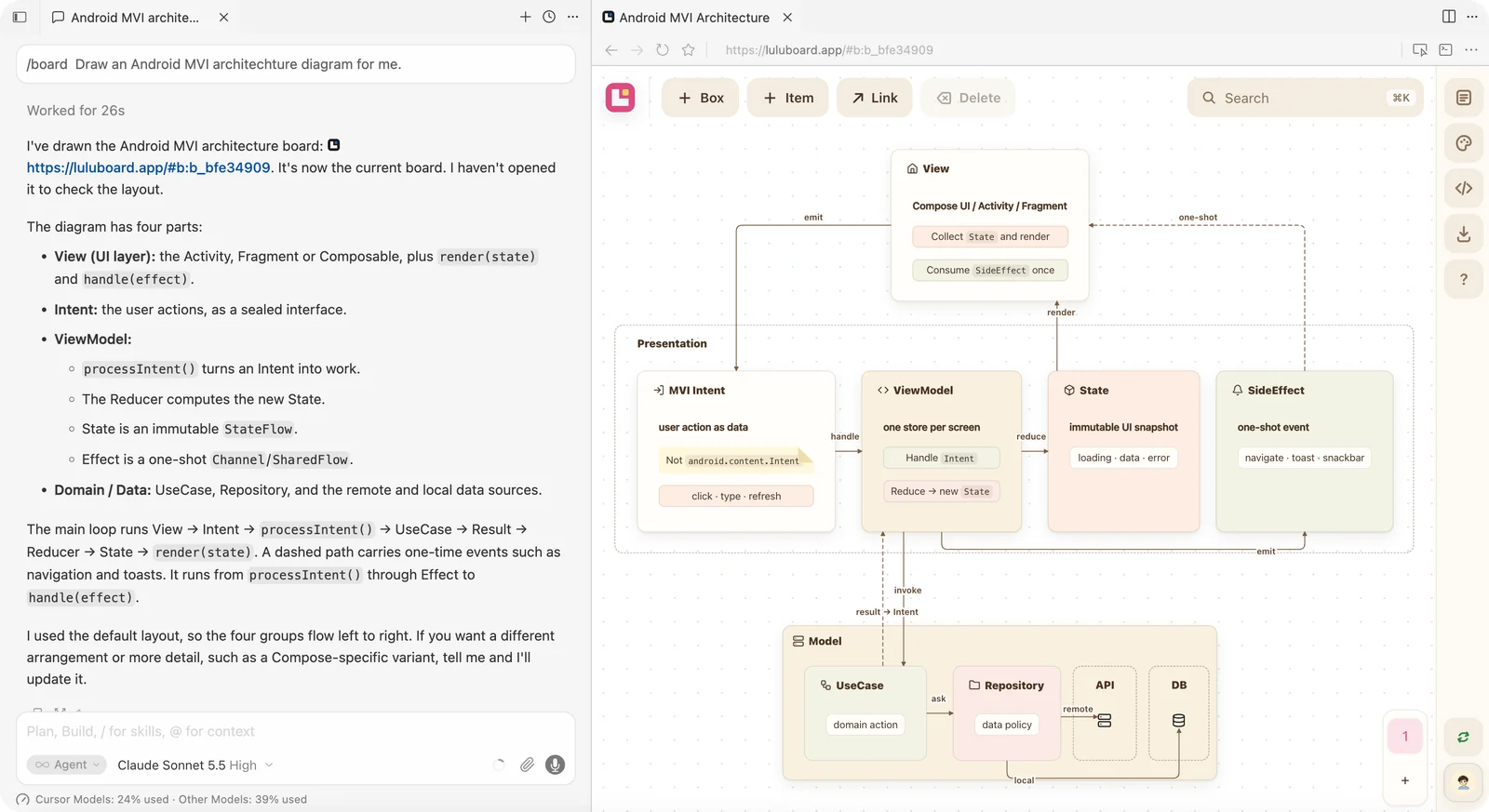
Ask your agent with /board — the Vela opens right next to the chat.
Edit on the canvas
A Vela is not a picture. Drag boxes, edit text and link them — then hand it back to your agent.
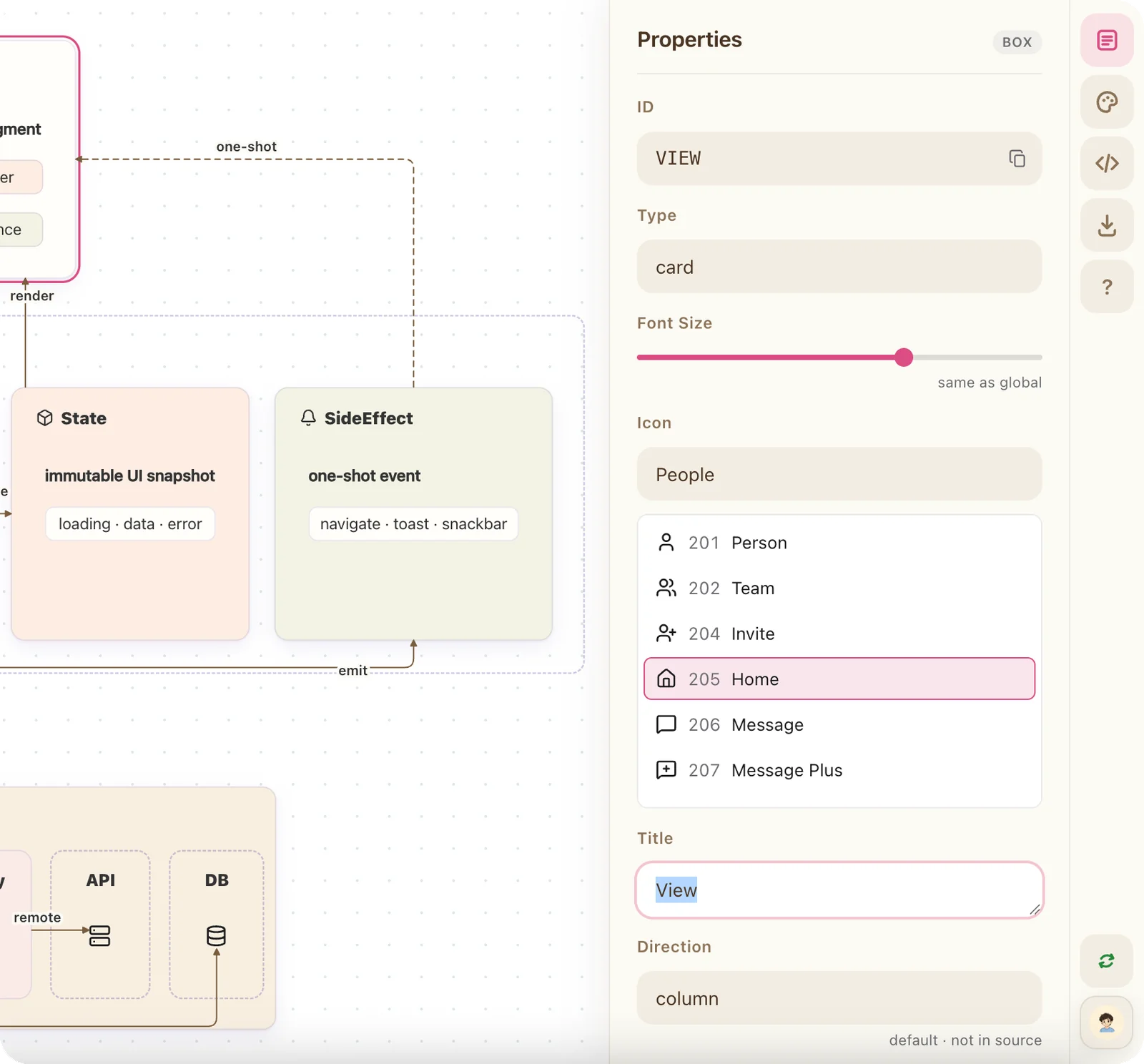
A compact text protocol
Your agent writes a few readable lines. Lulu Vela draws them.
boardthe board titleboxa carditema leaf inside a card->a link between them
board "Android MVI Architecture"
box VIEW 205 "View"
  item Render "Collect `State` and render"
box PRES type container "Presentation"
  box INTENT 104 "MVI Intent"
    item type note "Not `android.content.Intent`"
  box STORE 405 "ViewModel"
    item Reduce "Reduce → new `State`"
  box STATE 309 "State"
VIEW -> INTENT title "emit"
INTENT -> STORE title "handle"
STORE -> STATE title "reduce"
STATE -> VIEW title "render"
Connect your agent
Two steps, and your agent draws Vela in your account.
-
1
Connect MCP
https://mcp.luluvela.app/mcpAdd this MCP URL in your agent — Cursor, Claude Code or any MCP client. First use opens a Lulu Vela sign-in; no API key.
-
2
Install the skill
Teaches your agent the
View skill on GitHub/boardcommand and the text protocol.
Questions, answered
Do I need an account?
No. “Start free” opens a blank Vela that is saved in the page URL. Sign in only if you want cloud Vela and share links.
Where is my Vela stored?
A local Vela is encoded in the URL after the #. A signed-in Vela is saved to your account and opens with a #b: link.
Can I share a Vela?
Yes. Save the Vela to the cloud, then create a share link. Anyone with the link can view it; signed-in people can edit when access is set to Edit.
Can I use it with my AI agent?
Yes. Lulu Vela can authorize your agent to read and write your Vela through an OAuth consent screen. AI writes the protocol; you keep editing on the canvas.
Where can I see this page again?
From the workspace, open the Vela panel from the logo at the top left and click the ⓘ icon next to your account at the bottom. The Onboarding button still opens the example Vela.